Skip to content
Filters

Blur

Apply a smooth Gaussian blur with adjustable radius — perfect for background softening, privacy masking or aesthetic effects.

100% Private No Upload Instant Result Browser-Based Free Forever HD Quality
Loading tool…

Privacy Guaranteed

Your files are processed entirely in your browser. Nothing is uploaded, stored, or shared — ever.

Fast & Unlimited

Process as many images as you want. No queues, no waiting, no daily limits — just instant results.

Free Forever

No sign-up, no credit card, no hidden charges. Every tool is 100% free with full HD output quality.

Interface tour

See Blur in action

A quick walkthrough of the Blur workspace — from dropping your file to downloading the finished result.

alphaimagetools.app/tools
Drop image here
JPG · PNG · WEBP · GIF · BMP
1 · Upload panel
alphaimagetools.app/tools
Brightness+8
Contrast+12
Saturation+10
2 · Live controls
alphaimagetools.app/tools
Live preview
3 · Real-time preview
alphaimagetools.app/tools
FormatWEBP · 82%
Est. size≈ 214 KB
4 · Export options
Real transformations

Before & after examples

Drag the divider on each card to compare the original with the result you can produce in under a minute.

Sharp → creamy background — after
Sharp → creamy background — before
Sharp
Blur 6 px

Sharp → creamy background

Gaussian blur for privacy or bokeh.

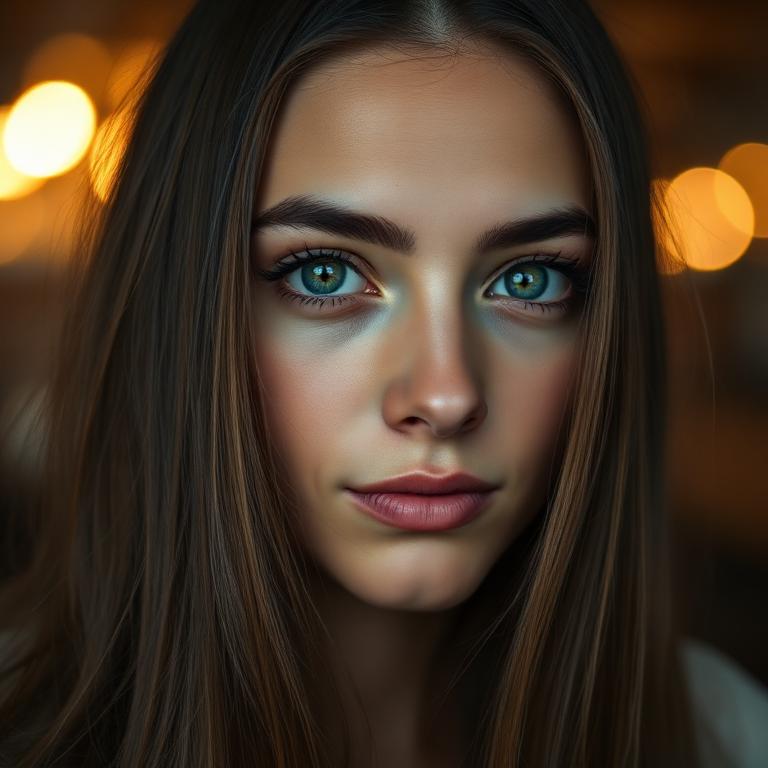
Portrait background blur — after
Portrait background blur — before
In focus
Softened

Portrait background blur

Studio-style separation from the backdrop.

Practical use cases

Where people use Blur every day

A snapshot of real scenarios where this tool saves time compared to launching heavy desktop software.

Photographers
Prep client previews on the road without booting a full editor.
Bloggers & creators
Produce hero images and inline shots in a few clicks.
E-commerce sellers
Standardise every product photo across your catalog.
Designers
Use it as a quick scratchpad before opening Figma or Photoshop.
Marketers
Ship campaign-ready assets for ads, emails and landing pages.
Students & teams
Clean up screenshots and diagrams for reports and decks.
Quality comparison

How compression affects your image

A reference table for choosing the right export quality without guesswork.

Setting
File size
Perceived quality
Best used for
Original
3.4 MB
100%
Master copy / print
High (90%)
1.1 MB
≈98%
Portfolio, blog hero
Balanced (75%)
420 KB
≈95%
General web use
Light (60%)
220 KB
≈90%
Thumbnails, previews
Aggressive (40%)
120 KB
≈80%
Placeholder / LQIP
Supported formats

What you can drop in — and what comes out

A full compatibility table so you know exactly which files this tool accepts and how to export them.

Format
Input
Output
Best for
Notes
JPG / JPEG
✓
✓
Photos on the web
Lossy — pick 80–90% quality
PNG
✓
✓
Transparency, UI, screenshots
Lossless — larger files
WEBP
✓
✓
Modern sites & apps
25–35% smaller than JPG
GIF
✓
—
Legacy assets
First frame is used
BMP
✓
—
Windows exports
Uncompressed — huge
SVG
—
—
Vector graphics
Not raster — use a vector editor
Recommended settings

Beginner defaults vs pro workflows

Two ways to configure the tool depending on how much control you want — both produce a clean result.

Setting
Beginner
Pro
Why it works
Brightness
+5 to +15
+8 with matching −5 contrast
Lift shadows without washing out midtones.
Contrast
+10
+6 with +4 sharpen
Adds punch without crushing blacks.
Saturation
+10
+5 with warm tint
Vivid but still natural on skin tones.
Practical workflow

Colour-correct a batch of blog photos

A start-to-finish example you can copy step by step — no assumptions, no jargon.

  1. 1
    Pick a reference
    Choose the best-lit photo of the shoot as your look reference.
  2. 2
    Note the values
    Write down brightness / contrast / saturation once you like it.
  3. 3
    Reapply
    Open each photo and dial in the exact same values.
  4. 4
    Sharpen last
    Apply a light sharpen (+3) after resizing so it matches the final pixels.
  5. 5
    Export
    WEBP @ 80% keeps colour vivid at small file sizes.
Total time: usually under 3 minutes end-to-end.

Tips for beginners

  • Always keep the original file — treat exports as a fresh copy.
  • Use the Before/After slider after every change so your eye doesn't 'get used' to the edit.
  • Start with small adjustments — 10% usually looks more natural than 50%.
  • Match the export format to the destination: JPG for photos, PNG for graphics, WEBP for the web.

Pro tips

  • Batch settings mentally: correct exposure → then contrast → then colour → then geometry → then sharpen.
  • Sharpen last, and only after the image is at its final size — sharpening scales with pixels, not with content.
  • Save common export settings you like as a personal preset in a notes file for repeatable output across projects.
  • For social feeds, export to the platform's exact recommended dimensions to skip its own aggressive re-compression.
Avoid these

Common mistakes — with visual examples

Three patterns that trip up new users, shown side-by-side so you can spot them at a glance.

Over-saturating skin tones

Anything above +25 saturation makes faces look sunburned.

Don't
Sat +40 (orange skin)
Do
Sat +10 (natural)

Sharpening before resizing

Sharpen scales with pixels — do it after resize.

Don't
Sharpen → resize (haloes)
Do
Resize → sharpen (crisp)

Stacking heavy filters on old JPGs

Strong filters amplify existing compression artifacts.

Don't
+50 contrast on JPG60
Do
Start from PNG / high-Q JPG
Published Last updated v3.5.2 Reviewed by editorial

Blur brings professional tonal control to any photo without the tone curves, layer masks and calibration screens of a full editor. It's part of the Alpha Image Premium suite — 40+ browser-based tools built for creators who value speed, quality and privacy in equal measure.

What is Blur?

Blur is a free, browser-based filters tool that apply a smooth gaussian blur with adjustable radius — perfect for background softening, privacy masking or aesthetic effects. It runs entirely on your device using standard web APIs — no upload, no queue, no account, and no copy of your file kept anywhere outside your browser.

Why use Blur?

Most online tools that offer this workflow require an upload to a server you don't control, where your file may be logged, cached or even reused. Blur takes a different approach: everything happens locally, the interface is designed for a single focused task, and the output is a clean file you can use in commercial work with no licensing strings attached. That combination — professional quality, no privacy trade-off, no cost — is what makes Blur the right default when you need to get this specific job done.

How it works

Under the hood, Blur uses the HTML5 Canvas API (and, where relevant, Web Workers) to decode your file, apply the transformation you request and re-encode the result in your chosen format. Because the pipeline is standard web technology, the results are consistent across every modern browser and reproducible from device to device. You control every parameter that affects the output, and the live preview updates as you adjust so you can iterate visually instead of guessing.

Practical use cases for Blur

Real-world scenarios where Blur produces professional results in seconds.

  • 1Add just enough sharpening or contrast with Blur so a downscaled image still reads clearly on retina displays.
  • 2Rescue an underexposed phone photo of an event by adjusting it with Blur until faces and text are readable again.
  • 3Give a product photo a subtle stylistic lift using Blur so it matches the visual tone of the surrounding page.
  • 4Match a series of images shot in slightly different lighting by running each through Blur with the same setting.
  • 5Course creators standardising lesson thumbnails lean on Blur because it produces predictable, on-brand output in a fraction of the time a full desktop editor would take.

Pro tips

  • Export as JPG or WEBP from Blur at a medium-high quality; extremely high settings rarely add visible detail but add file weight.
  • Move the slider in Blur in small increments — a 10% change usually looks more professional than a 50% one.
  • Combine filters instead of pushing a single one to its extreme; Blur chains cleanly with other adjustments.
  • Judge the result of Blur at final display size, not at fit-to-screen — details you can see zoomed in may vanish at web resolution.

Common mistakes to avoid

  • Re-saving the same JPG through a filter over and over — every pass adds a little compression noise.
  • Judging a filter at fit-to-screen zoom instead of the size the image will actually be shown at.
  • Pushing a single slider to its extreme instead of layering two small adjustments.

Frequently asked about Blur

Does Blur work on mobile devices?

Yes. Blur is fully responsive and tested on modern iOS Safari, Android Chrome, iPad, tablets and desktop browsers. Touch, drag and pinch inputs are supported wherever they make sense.

Will Blur reduce the quality of my file?

Only if you choose to. Geometric and structural edits are effectively lossless. When exporting to a lossy format like JPG or WEBP, you pick the quality level and a live file-size estimate helps you find the sweet spot.

What happens to my file when I close the tab?

Everything is discarded. Blur keeps your file only in the current browser session's memory. A refresh, tab close or navigation clears it — there is nothing left on our side either, because we never had a copy.

Can I use Blur offline?

Once the page has loaded, most operations continue to work without an internet connection because all processing is client-side. You'll only need connectivity to load the page or fetch remote resources.

Update history

  1. v3.5.2Refined mobile touch handling for smaller controls.
  2. v3.4.7Reduced memory usage when processing very large images.
  3. v3.3.9Reworked the drag-and-drop hit area for easier drops.

Wrapping up

Blur was built to make one specific job effortless — without asking you to trust a server with your file, install anything, or subscribe to something. Bookmark the page, come back whenever you need it, and every visit will feel exactly as fast as the first one. If a related workflow comes up next, the Continue Reading section below points you to the guides and tools that pair naturally with Blur.

Smart Recommendations

Continue exploring around Blur

What is Blur?

Blur is a free, browser-based tool from Alpha Image Premium. Apply a smooth Gaussian blur with adjustable radius — perfect for background softening, privacy masking or aesthetic effects.

Blur is part of the Alpha Image Premium filter suite — a focused set of tools that let you stylize a photo or correct its look without launching desktop software. Apply a smooth Gaussian blur with adjustable radius — perfect for background softening, privacy masking or aesthetic effects. Each filter ships with a single, predictable control surface so you can dial in exactly the strength you want and see the result the instant you move the slider.

Filters are useful for far more than aesthetics. Photographers use Blur to rescue underexposed shots, recover detail in flat scenes and produce a consistent edit style across an entire shoot. Marketers use it to give a banner image a recognisable look that matches their brand. Bloggers and creators use it to make stock photos feel less generic by adding a signature tone. Even product sellers reach for filters to brighten a photo taken in bad lighting before listing an item.

Blur runs on the HTML5 Canvas pipeline, which is implemented natively in every modern browser. That means it works on Chrome, Edge, Safari, Firefox, Brave, Opera and Arc on desktop, plus mobile Safari and mobile Chrome on phones and tablets. Input supports JPG, JPEG, PNG, WEBP, GIF and BMP files. Output can be saved as JPG, PNG or WEBP at the quality you choose, with a live size estimate before you download.

Privacy is the part most users do not realise they are giving up with other filter sites. Many "free" online filter tools upload your image to a server, where it may be logged, cached or even reused. Blur does none of that — your photo stays in your browser tab, your filter is applied locally with the device's GPU and CPU, and the export is written straight to your downloads folder. There is nothing for us to leak because we never see the file in the first place. That makes the tool safe for unreleased shoots, client previews, sensitive documents and personal photos you would never want sitting on someone else's disk.

When and why to use Blur

Use Blur when a photo is technically fine but visually flat — a slight brightness lift, a contrast bump or a light stylistic filter can transform an average shot into a scroll-stopping one.

Filters are also the fastest privacy tool you have. A quick blur or pixelate over a face, screen or licence plate makes a screenshot safe to share in seconds.

Apply filters when you need a consistent visual style across a series — the same slider values on every image create a signature look for a portfolio, feed or blog.

How to use Blur

  1. Open the tool page — everything loads instantly because there is no sign-up, paywall or upload queue to wait for.
  2. Drag a photo onto the upload area, or click it to pick a file from your device, phone gallery, or screenshot folder.
  3. Watch the live preview render your image as soon as it is decoded — no spinners, no waiting on a server round-trip.
  4. Adjust the controls on the right. Every slider, toggle and color picker re-renders the preview within milliseconds.
  5. Toggle the Before/After comparison slider (or press the B key) to compare your edit against the original at full resolution.
  6. Pick an output format and quality from the export panel. The estimated file size updates so you know what you are downloading.
  7. Click Download (or press Ctrl/⌘ + S) and the finished file is saved straight to your device — never to a server.
  8. Press Reset (Ctrl/⌘ + ⌫) to start fresh, or load another image to keep working without leaving the page.

Key features

  • 100% browser-based. Every byte of work happens locally with standard web APIs — no upload, no server queue, no account.
  • Privacy-first by design. Your file never leaves your device. We do not store, log, share or look at the content you process.
  • Drag-and-drop input. Drop files directly onto the page, paste from the clipboard, or pick them with the native file dialog.
  • Live preview. The result re-renders as you adjust controls so you can iterate visually instead of guessing.
  • Before / After slider. Drag a split between the original and processed result, or press B, to compare changes at any zoom level.
  • Adjustable export quality. Pick your format and compression level with a real-time file-size estimate before you download.
  • Keyboard shortcuts. Power users get Ctrl/⌘+S to download, Ctrl/⌘+⌫ to reset, and B to toggle the comparison slider.
  • Works fully offline. Once the page is loaded you can disconnect from the internet and continue editing without interruption.
  • No watermarks. Output is exported clean — no logos, banners or branding stamped onto your finished file.
  • No daily limits. Process as many files as you need. There are no tier locks, daily caps, monthly quotas or hidden upsells.
  • Accessible interface. High-contrast UI, keyboard navigation, focus rings and screen-reader labels make the tool usable for everyone.
  • Responsive on every device. The layout is tuned for desktop, tablet and phone, with touch-friendly controls for mobile editing.

Benefits

Save time on simple edits. Skip launching heavy desktop software for a single quick task — the page is open before Photoshop would finish loading.

Protect sensitive content. ID scans, screenshots of private chats, unreleased product shots, medical images — everything stays on your machine.

Cut storage and bandwidth costs. Smaller, properly formatted files load faster, rank better on the web and use less storage in cloud drives and email.

Work from anywhere. All you need is a browser. Use the same tool from a laptop, tablet, library computer or phone with identical results.

Zero learning curve. Every control has a clear label and live preview, so even first-time users get a professional result on their first try.

Predictable, repeatable output. Numeric inputs and consistent algorithms mean the same settings always produce the same file — great for batch workflows.

No vendor lock-in. There are no proprietary project files. Bring any standard image or text in, take any standard format out.

Free forever for personal and commercial work. Use the output in client projects, paid videos, printed materials or commercial websites with no licensing fees.

Friendly to slow connections. Because nothing has to upload, the tool feels equally fast on a fiber connection or a spotty mobile network.

Safer than third-party uploaders. Many free online tools quietly retain your uploads — running locally removes that entire class of privacy risk.

Best practices & tips

  • Apply filters in moderation — small adjustments usually feel cinematic, while extreme ones can look amateur.
  • When colour-correcting, fix exposure (brightness) before contrast and only touch saturation last.
  • Use the Before/After slider often. Filters are sneaky — what looks bold at first quickly becomes the new normal to your eye.
  • For a consistent look across multiple photos, write down the exact slider values you used and reapply them to every image in the set.
  • Sharpening should be the last step in any edit. Apply it after resizing so it matches the final pixel grid.
  • If a photo already has heavy JPG compression, avoid stacking strong filters — you will amplify the existing artifacts.
  • Pixelate and blur are great privacy tools. Use them on faces, licence plates, addresses and screen contents before sharing.
  • Export to PNG when you plan to layer the filtered image with text or other graphics — JPG re-encoding will soften the edges.

Common use cases

Photographers. Build a signature edit style and apply it consistently across a shoot, portfolio or social feed.

Bloggers & creators. Turn stock or smartphone photos into branded visuals that match the rest of your site.

E-commerce sellers. Brighten and clarify product photos taken in difficult lighting before listing them.

Designers. Stylise hero imagery for landing pages, ad creative and pitch decks.

Students. Convert reference images to greyscale for cleaner printing or for accessibility checks.

Marketers. Produce on-brand variants of the same source image for different campaigns and platforms.

Privacy-conscious users. Use blur and pixelate to anonymise faces, screens and personal data before sharing screenshots.

Hobbyists. Experiment with vintage, mono and high-contrast looks without committing to a paid editor.

Common mistakes to avoid

  • Cranking sliders to the extreme. Filters look their best when they are barely noticeable — the goal is to enhance the photo, not disguise it.
  • Adjusting saturation first. Fix exposure and contrast before touching colour, otherwise you end up over-correcting.
  • Sharpening before resizing. Sharpening is a final step — apply it after the image is at its final display size.
  • Stacking heavy filters on already-compressed JPGs. You will amplify existing artifacts instead of hiding them.
  • Judging the result without the Before/After slider. Your eye adapts quickly, and what feels bold at first can look muted after 30 seconds.

Frequently asked questions

Is Blur really free to use?+

Yes. Blur is 100% free with no sign-up, no watermark on your output, and no daily limit. Use it as often as you need on as many devices as you want.

Are my files uploaded to a server?+

No. Everything happens locally inside your browser using standard web APIs. Your file or text never leaves your device, which means faster results and complete privacy.

Does it work on mobile phones and tablets?+

Yes. The interface is fully responsive and tested on iOS Safari, Android Chrome and modern desktop browsers. Touch gestures work for drag-and-drop uploads and slider controls.

Which browsers are supported?+

Every modern browser, including Chrome, Edge, Firefox, Safari, Brave, Opera and Arc on desktop, plus mobile Chrome and mobile Safari on phones and tablets. There is no installation or extension required.

Do I need to create an account?+

No. There is no sign-up, no email confirmation and no profile. Open the page and you are ready to work — the same is true on any device you switch to later.

Can I use the output for commercial projects?+

Yes. You own anything you create with the tool. We claim no rights over your input or output, and there are no licensing fees or attribution requirements.

What happens to my files after I close the page?+

Nothing — because nothing was ever uploaded. The in-memory copy is discarded the moment you close the tab, and your original file on disk is left untouched.

Does the tool work offline?+

Once the page is loaded the tool runs entirely in the browser, so you can disconnect from the internet and keep working. The next time you open the page online, you will get any UI updates.

Is there a file-size limit?+

There is no hard cap from us. The practical limit is your device's available memory — modern phones and laptops handle very large files comfortably.

How do I report a bug or request a feature?+

Use the Feedback page linked in the site footer. We read every submission and use it directly to improve the tools.

Does Blur change my original photo?+

No. The original file on your device is never modified. The tool works on an in-memory copy and only writes a brand-new file when you click Download.

Can I combine multiple filters?+

Yes — apply one filter, download the result, then drop that result back into another filter tool. Because everything runs locally there is no upload time between steps.

Related guides & tutorials

Go deeper with in-depth articles from the Alpha Image blog.

Conclusion

Blur is the fastest way to turn an ordinary photo into a polished one, without the complexity of desktop editors. Keep adjustments subtle, use the Before/After view often, apply sharpening last, and you will get a consistent, professional look across every image you touch — all while your originals stay safely on your device.

Related Filters tools

Explore more tools in the Filters category.